Convert DOCX to LaTeX Offline: Pandoc and Browser-Local Options
Converting a Word document to LaTeX can be straightforward for simple prose, but academic manuscripts often contain mathematical equations, multi-column tables, figure embeds, citations, and specific typography that require careful attention after conversion.
When working with unpublished manuscripts, proprietary research, clinical summaries, or legal contracts, understanding where file data travels is essential. This guide outlines how local desktop processing compares to browser-based conversion, demonstrates how to audit network activity using browser tools, and provides a structured checklist for reviewing generated LaTeX markup.
Choose a Conversion Method
Depending on your system environment and privacy requirements, different conversion approaches offer distinct trade-offs between setup effort and control over data handling:
| Method | Setup Required | Processing Location | Best Suited For |
|---|---|---|---|
| Pandoc CLI | Install native binary on OS | Local computer storage | Automated build scripts, batch CLI conversion |
| Browser-Local Web Tool | Open URL in standard browser | Client memory via WebAssembly | Quick manuscript conversion without installing desktop tools |
| Installed Browser Add-on | Install from browser store | Local extension sandbox | Frequent conversions with packaged offline engine |
| Remote Hosted Service | Upload file to cloud endpoint | Remote third-party server | Public documents where data transmission is acceptable |
Option 1: Desktop Conversion with Pandoc CLI
Pandoc is an open-source document converter. As described in the official Pandoc User's Manual, running Pandoc locally executes on your personal machine. These flags come from the Pandoc User's Manual and were not run in our environment. The converter embeds Pandoc 3.10 compiled to WebAssembly; the desktop CLI version may produce slightly different output. Common command-line invocations include:
# 1. Generate a body fragment (ideal for pasting into an Overleaf chapter):
pandoc manuscript.docx -o manuscript.tex

# 2. Generate a complete standalone document with full LaTeX preamble:
pandoc manuscript.docx -s -o manuscript.tex

# 3. Extract embedded media files into a dedicated subfolder:
pandoc manuscript.docx -s --extract-media=./media -o manuscript.tex

# 4. Prevent hard-wrapped line breaks in paragraph prose:
pandoc manuscript.docx -s --wrap=none -o manuscript.tex

# 5. Handle Word tracked changes (options: accept, reject, or all):
pandoc manuscript.docx -s --track-changes=accept -o manuscript.tex
When to use a fragment vs. a standalone document:
- Fragment (default, omitting
-s): Produces only the structural LaTeX elements (sections, paragraphs, equations, tables) without\documentclassor\begin{document}. This is convenient when inserting a converted section into an established institutional template or Overleaf thesis project. - Standalone (with
-s): Generates an independent.texfile including document class declarations, geometric dimensions, and required\usepackage{}calls.
Option 2: Browser-Local Web Tool and Extension
For users who cannot install command-line software on restricted workstations, our browser-based tools provide an alternative:
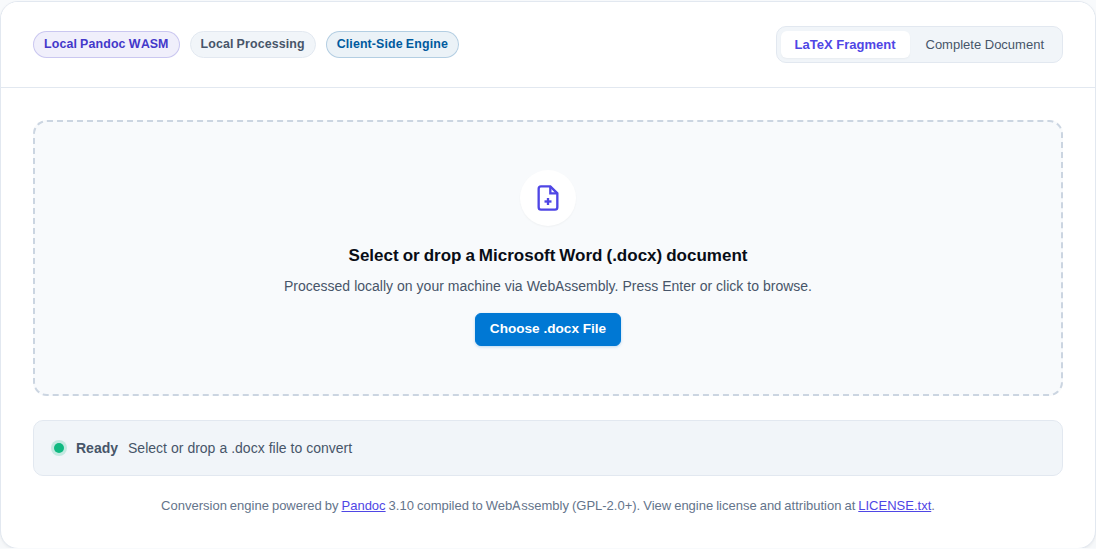
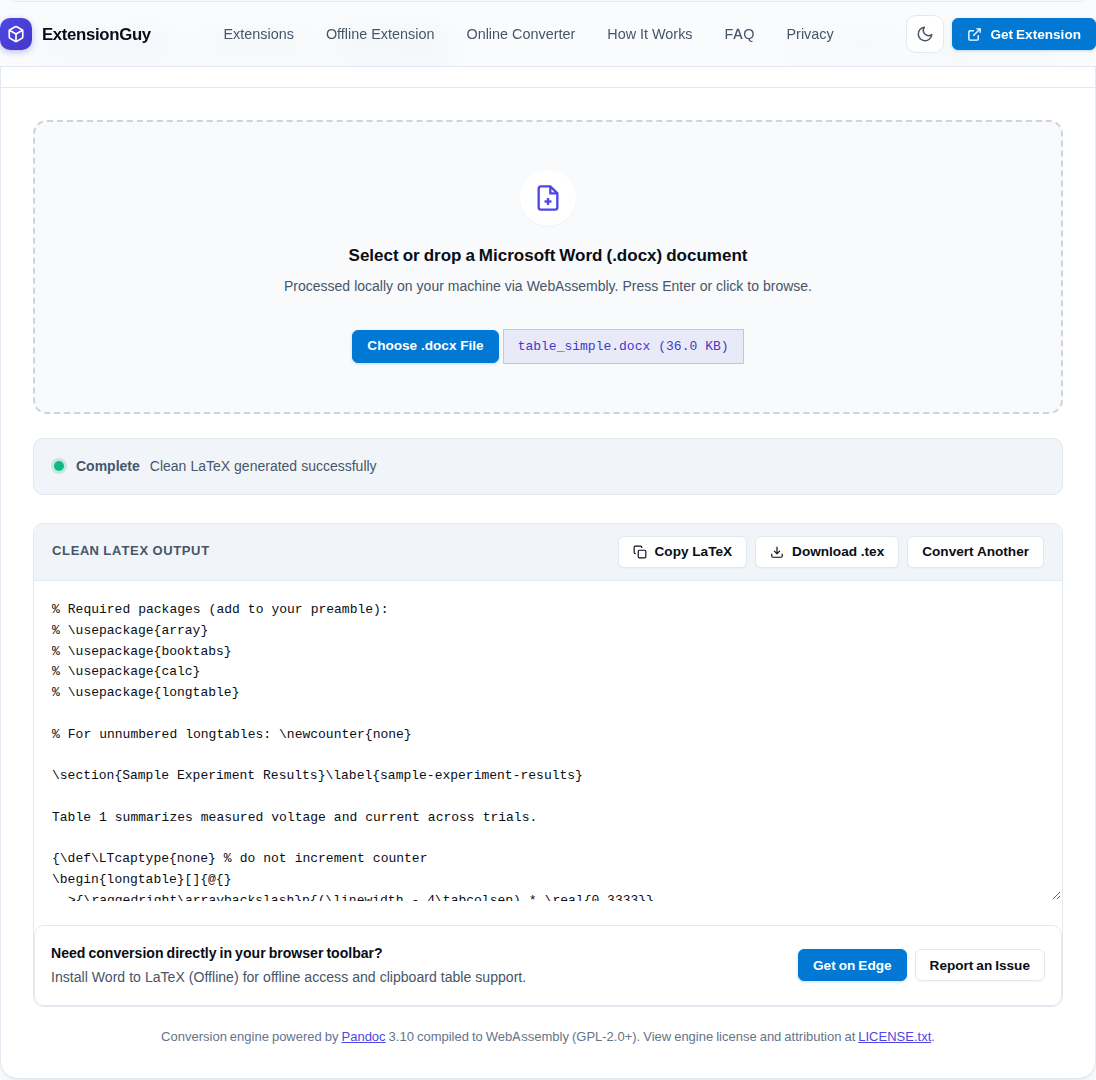
- The web-based Word to LaTeX converter loads a compiled WebAssembly binary into your browser window on demand.
- The Word to LaTeX Edge Add-on packages the uncompressed WebAssembly engine directly inside the extension archive — in the packaged build we inspected (version 1.0.6, bundling
pandoc.wasmat 58,580,800 bytes), declaring an empty permissions array ("permissions": []) with no host permissions.
Audited Network Behavior and Data Handling
In our test, loading the converter page and converting a sample DOCX produced only GET requests to extensionguy.me for static files: the page, fonts, scripts, and the conversion engine. We observed no upload requests, and the site's Content-Security-Policy limits connections to its own origin.
Important Technical Nuances: On first use, the web converter downloads the compressed pandoc.wasm.gz engine (15,978,996 bytes on disk, served over HTTP GET) and decompresses it in browser memory. During automated testing, while the page session remained active, subsequent conversions operated when simulated network access was disabled. However, reloading a fresh browser tab while disconnected produced a network error because the static web tool does not currently register a service worker cache. In contrast, the installed browser add-on bundles the binary locally within the extension directory.
How to Verify Network Traffic Yourself
You can inspect the network behavior of any web converter using your browser's built-in developer tools:
- Open your browser's Developer Tools (press F12 or Ctrl+Shift+I) and select the Network tab BEFORE converting.
- Tick the Preserve log checkbox and leave the filter set to All.
- In the filter box, enter
method:POST(and-domain:extensionguy.meto spot other origins) to reveal any data payloads sent off-device. - Select a DOCX file to convert and observe the request log to verify no outbound upload calls occur.
Note: Observing no outbound upload requests in developer tools demonstrates that no standard network calls were dispatched during that specific interaction, though it does not replace reading the application's source code or verifying security policies.
What Converts Well and What Needs a Manual Pass
Document parsers reconstruct formatting through intermediate syntax trees. Review these five areas before finalizing your LaTeX source:
1. Mathematical Equations
Word equations built with the native equation editor (OMML) convert into standard LaTeX math syntax (e.g. $...$ for inline expressions and \[...\] for display math). Check complex structures such as multi-line matrices, custom piecewise brackets, radicals, and non-standard summation limits against your original document.
2. Tables and Alignment
Inspect column widths, horizontal rules, and multi-column headers. Complex Word tables often require explicit column definitions (such as p{...} or tabularx) to avoid margin overflow. For step-by-step table troubleshooting, see our companion Word tables to LaTeX guide.
3. Embedded Figures and Images
When converting locally with Pandoc CLI using --extract-media=./media, verify that graphic assets were written to disk and that the generated \includegraphics{} paths align with your TeX project structure.
4. Citations and Cross-References
Fields inserted by reference managers (Zotero, EndNote, Mendeley) and Word cross-references typically convert as static plain text rather than functional \cite{} or \ref{} keys. Plan to link citation keys with your .bib file manually.
5. Complex Layouts and Text Boxes
Floating text boxes, WordArt, callout sidebars, and multicolumn section breaks cannot map directly to linear LaTeX code and will need manual restructuring into appropriate environments.
Engineering Notes: Post-Processing Cleanup
When using standard Pandoc, generated LaTeX fragments frequently include Pandoc-specific macros that cause compilation failures unless additional packages or custom definitions are loaded in the preamble. In our converter implementation (src/converter/cleanup.ts), the post-processing pipeline addresses these artifacts:
-
Removing
\tightlist: Pandoc inserts\tightlistinside itemize and enumerate lists to suppress item spacing. However, standard LaTeX document classes do not recognize this command by default, throwing anUndefined control sequence \tightlisterror. The pipeline removes lines matching^[ \t]*\\tightlist[ \t]*$so list items compile cleanly. Removing \tightlist means list items use LaTeX's default spacing. -
Unwrapping
\pandocbounded{...}: In newer Pandoc versions, figures are wrapped in\pandocbounded{\includegraphics{...}}to scale oversized images. Because older or standard TeX installations lack this command, our cleanup pipeline uses a depth-aware balanced-brace scanner to safely remove the wrapper while keeping the enclosed graphic declaration intact.
Limitations
Automated conversion converts structural semantics, but no software can anticipate journal-specific submission guidelines, custom bibliography styles, or macro configurations. Complex mathematical formulations and elaborate tabular alignments require manual review.
Final Verification Checklist
- Inspect the generated LaTeX fragment or standalone document in your editor.
- Cross-check display equations, fractions, and symbols against the original DOCX file.
- Inspect tables for column overflow and verify required packages (e.g.
booktabs,longtable,calc). - Confirm that extracted images exist on disk and paths match
\includegraphics{}. - Reconstruct bibliography citation keys and section cross-references.
- For sensitive manuscripts, verify your conversion tool's network behavior using browser developer tools before converting files.